
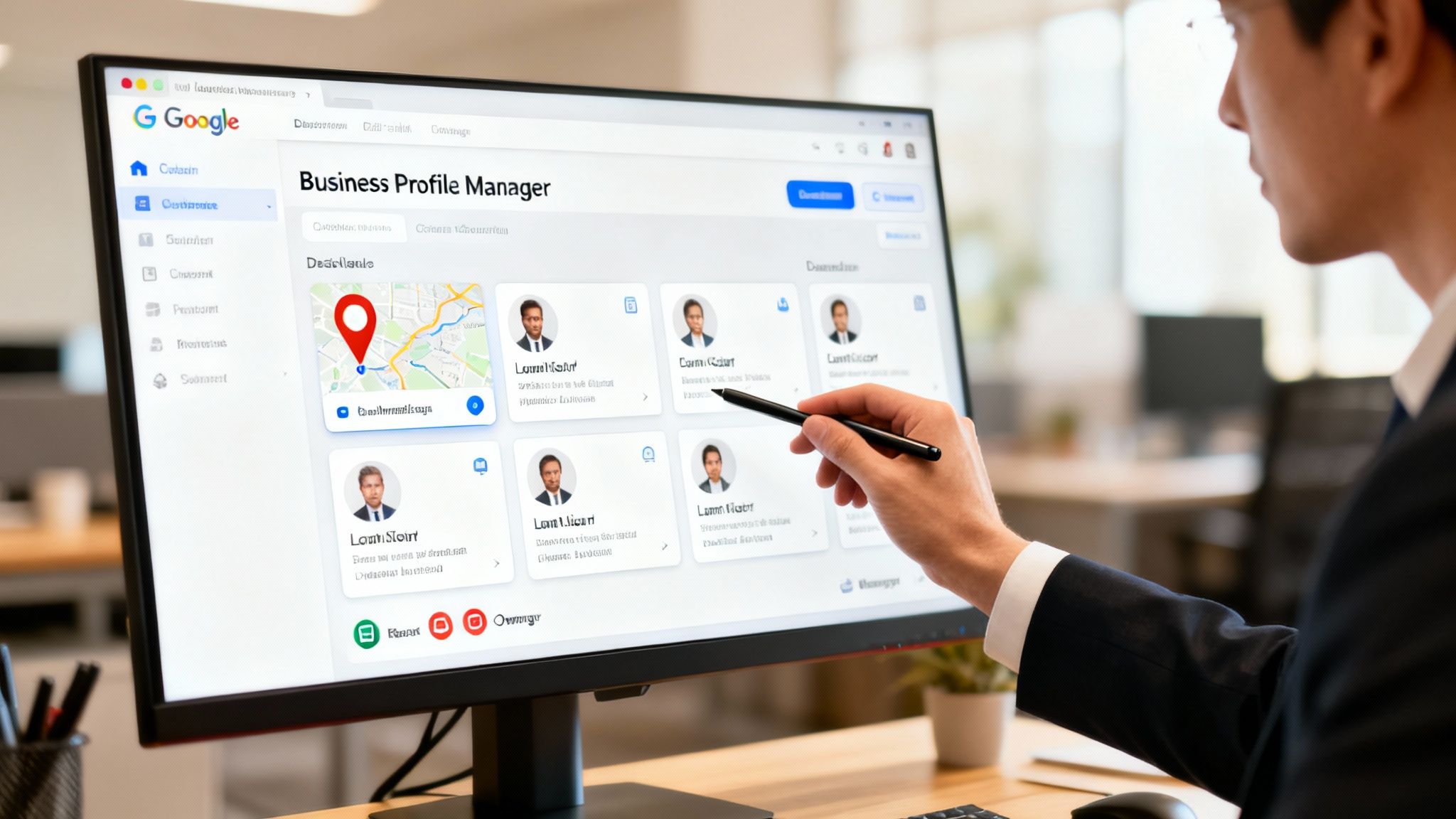
Google Business Profile Manager gives you one place to claim, manage and optimise all your local business listings.
It cuts down admin time, keeps your details uniform across Search and Maps, and feeds you live insights into what drives clicks, calls and visits.
🚀 Quick Tip: A fully optimized Google Business Profile Manager dashboard can boost customer actions by up to 70%.
Why Google Business Profile Manager Matters
If you want local customers to find you, scattered logins or mismatched details just won’t do.
This dashboard corrals every profile under one login, so updates happen in seconds and nothing slips through the cracks.
Core Functions Of Google Business Profile Manager
Below is a quick look at the main things you can do in the tool.
| Function | Description |
|---|---|
| Claim Profiles | Verify and control listings to prevent unauthorised changes |
| Assign Roles | Grant specific permissions to owners and managers |
| Monitor Insights | View metrics like searches, actions, and customer interactions |
Each item here supports a key part of your local game plan—from proving you own the spot (think of it as a digital handshake) to giving your team just the right level of access and seeing exactly how people engage.
Benefits Of A Central Dashboard
Managing multiple locations can feel like juggling chainsaws—one slip and you’re in trouble.
- Consistent business details build trust with searchers
- Instant updates across every profile reflect new services or hours
- Controlled access stops unauthorised edits in their tracks
- Combined insights steer smarter local campaigns
All up, that’s hours saved and fewer mistakes for busy teams.
Real World Impact
67 monthly actions on average show why keeping profiles tight matters for Australian businesses.
Picture a Sydney café clocking 36 website clicks and 18 calls each month just by staying on top of their dashboard. That kind of steady traffic beats hunting through fragmented logins—and it builds customer confidence at the same time.
Simplified Local Approach
A disjointed setup means slow replies and missed chances. A single dashboard flips that script:
- One login for every location
- A snapshot of each listing’s health at a glance
- Fast replies to reviews and Q&As
This not only saves time but projects a solid, dependable image to anyone hunting for your services.
Soon, you’ll see how to claim your first location, nail the right categories, set opening hours and upload images that pop. After that, we’ll dive into bulk imports for multiple sites, best practices on permissions and a real-life case study of a Melbourne plumber who shot to the top of search results.
What You Will Learn
- How to set up single and multi-location profiles efficiently
- Best practices for roles, permissions and security
- Tips for service-based businesses to optimise local listings
- Troubleshooting access issues and transferring ownership
- Agency workflows for bulk management and audits
Each section builds on the last, giving you the know-how to master Google Business Profile Manager and simplify your local strategy.
Let’s jump into roles and permissions next, with real examples of who should own what—and why it matters.
Enjoy the guide ahead!
Understanding Ownership And Manager Roles
Getting permissions right in Google Business Profile Manager is like handing out keys to a building. It stops unauthorised edits, keeps your listing secure and streamlines your profile verification process.
Think of the Primary Owner as the CEO, Owners as department heads and Managers as floor supervisors.
Differences In Roles
Before we dive deeper, let’s clarify what each role does in everyday tasks.
The Primary Owner calls the shots: they transfer ownership, remove any user and fine-tune every setting. No request goes past them.
An Owner shares almost all those powers—except they can’t assign or unseat the Primary Owner. They manage listings and content with one hand tied behind their back.
A Manager handles day-to-day updates like changing business hours, posting offers and replying to reviews. They can’t touch user permissions or verification.
- Primary Owner: Complete control over settings, user invites and profile verification.
- Owner: Manages listings and content but can’t alter the Primary Owner role.
- Manager: Updates information, publishes posts and reads insights without changing access levels.
Visualising Permission Hierarchy
Here’s a simple graphic to show how roles stack up:
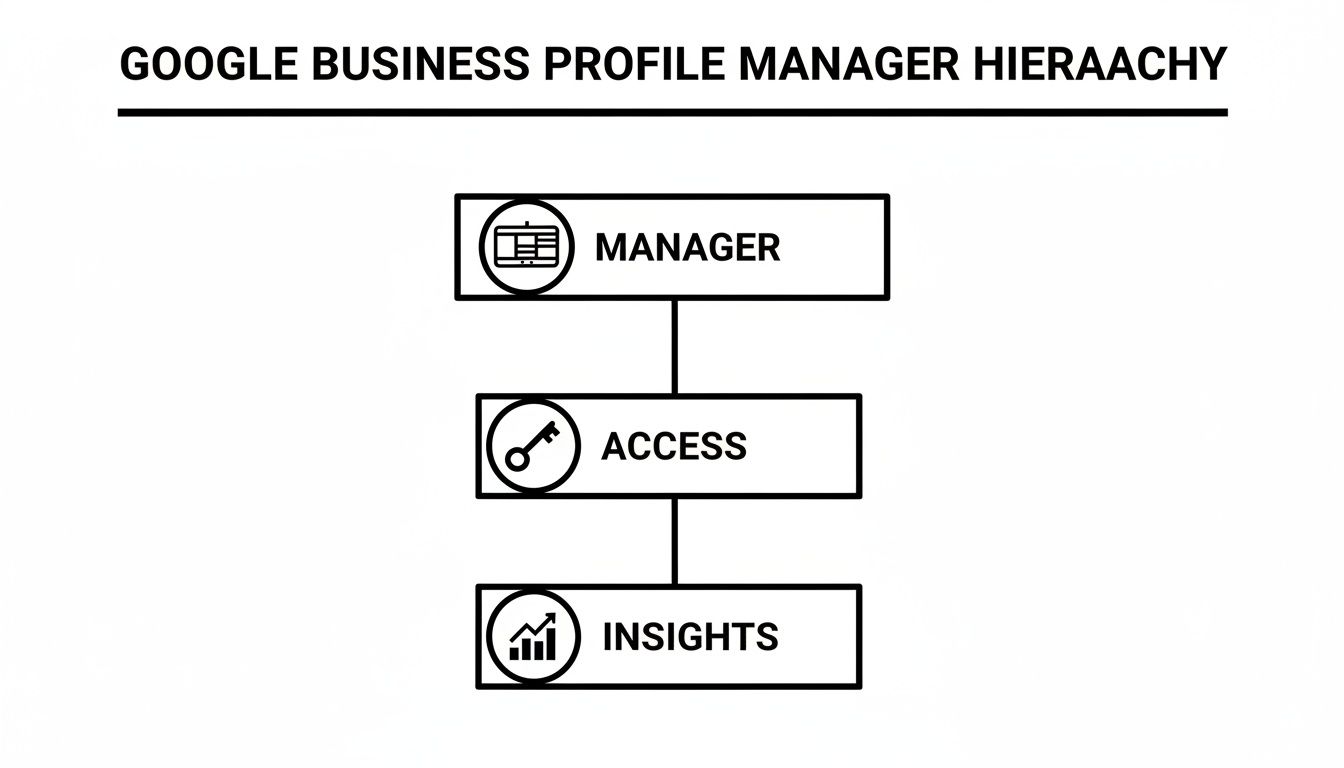
This pyramid view makes it easy to remember who can do what: Managers at the base, Owners in the middle and the Primary Owner at the top.
Fact In Practice Sydney Cafe Actions
Picture a cosy café in Sydney. Every month, with only routine updates to their Google Business Profile, they see 67 actions from locals—36 clicks through to the website and 18 phone calls to book tables.
These figures show how consistent updates translate into real customer engagement. Read more in Adelaide SEO Marketing’s detailed article.
Best Practices For Role Hierarchy
Delegating access carefully keeps errors at bay and lets your team move faster.
- Define permissions based on job roles to avoid overlap.
- Invite Managers only if they need to edit content or view insights.
- Use clear naming conventions so every account is instantly recognisable.
- Run quarterly audits to retire outdated or inactive users.
Clear roles prevent slip-ups and empower your team to update profiles with confidence.
Document these standards in a shared playbook so newcomers know exactly who does what.
Real Examples Of Role Misuse
- An intern with Manager access accidentally wiped weekend hours off the café profile, leaving it closed on Saturday mornings.
- A team member with Owner rights published unapproved specials, confusing customers and denting bookings.
Maintaining Permission Hygiene
Keep a living log of every invitation, acceptance and revocation. Automate reminders if possible and adjust roles the moment someone leaves or changes position.
A permissions dashboard offers a quick snapshot of who has access right now. This stops forgotten accounts from becoming security hazards.
Role Assignment Checklist
- Verify the Primary Owner details match your legal business documents.
- Confirm Owners are senior staff members or trusted external agencies.
- Ensure Managers have task-specific duties like updating posts or images.
- Record each user change with date and author in your permissions log.
Use this checklist every quarter to stay compliant with your brand standards.
Next, we’ll cover how to add and remove managers and transfer ownership without downtime.
Initial Setup For Single Business Profiles
Getting your Google Business Profile Manager off the ground for a single location is quick but vital. It’s your online shop window—presenting the best of your business to anyone searching on Google or Maps. Completing your profile verification process quickly gets you in front of local search queries.
Start by signing in with a business email you control. From there, the Manager dashboard gives you a clear view of your listing’s status and options. If you need a walkthrough on logging in, check out our article on Google Business Profile login for step-by-step instructions.
Signing In And Claiming Your Business
Head to the Manager dashboard and type in your business name. You’ll see a drop-down list of matching locations—pick yours or click Add a Business if it’s brand new.
Watch for duplicates. Two identical listings can confuse customers and splinter your reviews.
This screen confirms you’re in the right account and points out the Claim button on unverified profiles.
- Sign in to Google Business Profile Manager with a verified email.
- Search your business name and verify the address details.
- Click Claim this Business or Request Access if someone else already owns it.
Completing Business Details
Once you’ve claimed your listing, fill in every field with care. Accuracy here translates into trust with potential customers.
- Business Name: Keep it precise—no fluff.
- Address: Use standard Australian formats (avoid “#” for suites).
- Phone Number: Match the number customers dial in real life.
Pick the category that best describes what you do. Too broad and you’ll blend in; too narrow and you might miss relevant searches.
- Wrong choice: A café tagging itself as “Restaurant Equipment” could mislead diners.
- Consistency: Abbreviations or missing unit numbers slow down postcard verification.
- Hours: Forgetting to update holiday times can frustrate people who show up when you’re closed.
Verifying And Optimising Your Profile
Verification usually happens by postcard, phone or email. Postcards arrive in about 5 days with a PIN you enter on the Manager dashboard.
Once you’re verified, it’s time to make your profile pop:
- Add a clear storefront shot so people recognise your location at a glance.
- Include interior photos that capture the vibe of your space.
- Upload service or product images—use descriptive filenames and alt text for extra SEO benefit.
Finally, revisit your hours, services and highlights. These small tweaks can turn browsers into buyers.
Tip: Choosing the right business category can boost impressions by up to 30% according to local SEO experts.
Common Setup Pitfalls And Fixes
A few simple mistakes can stall your launch or send customers astray. Here’s how to stay on track:
- Duplicate Profiles: Use the Manager’s suggested duplicates tool to merge or remove extras.
- Incorrect Address Format: Stick to Australian conventions (e.g. “Suite” not “#”) so your postcard arrives without delay.
- Category Overload: Limit yourself to three clear categories—too many options dilute your main expertise.
For example, a local florist fixed a two-week hold-up by switching from “Floral Supplies” to “Florist” in their categories.
With these steps, your single-location profile will be verified, accurate and ready to serve local customers. Before you move on, check your profile insights after 48 hours under the Performance tab. Address any flagged issues or suggested edits early to keep your listing healthy and visible.
Happy optimising your Google Business Profile.
Managing Multiple Locations At Scale
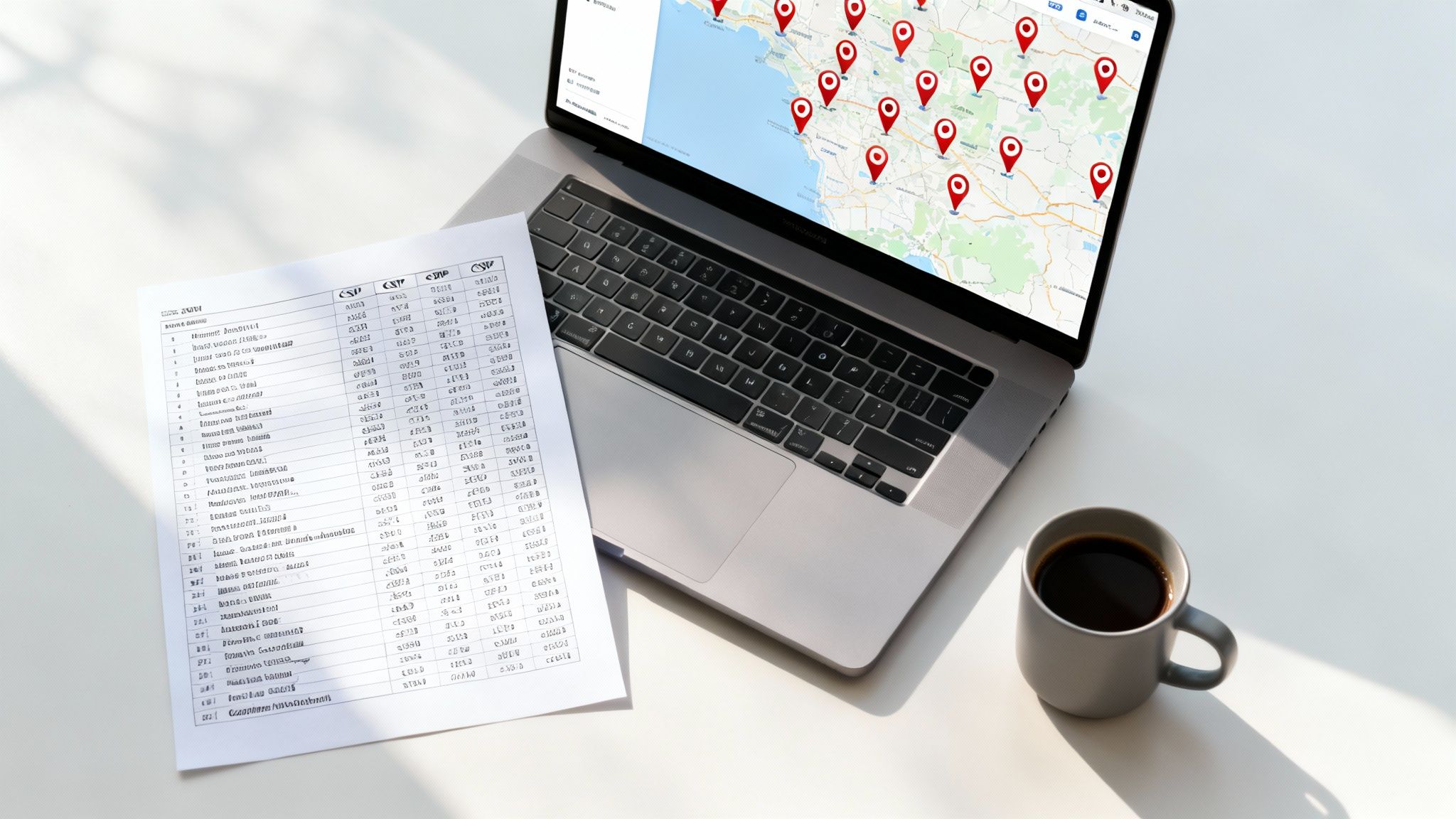
Spreading your business across several cities or states can feel like juggling a dozen plates at once. Tackling each Google Business Profile one by one? Almost impossible. That’s where Google Business Profile Manager’s bulk tools come in handy.
You can carve up access so regional leads handle only their slice of the map—no full dashboard rights needed. It keeps updates moving fast and your data locked down tight.
Single Vs Multi-Location Management
Before you dive in, it helps to see how a single outlet and a nationwide chain differ when it comes to managing profiles.
| Feature | Single Location | Multi Location |
|---|---|---|
| Onboarding | Claim and verify each profile manually | Import dozens via a CSV template simultaneously |
| Content Updates | Edit hours or photos one at a time | Apply bulk updates—hours, offers or descriptions |
| Error Handling | Fix issues listing by listing | Centralised report flags rows for easy review |
| Insights | View stats per individual listing | Compare group metrics with filters in seconds |
Even if you start small, thinking in bulk sets you up for smooth growth.
Spreadsheet Template Setup
First up, grab Google’s official CSV template from the Manager interface. It’s laid out to match their import schema exactly—no guesswork.
• Populate core fields: location name, street address, phone, primary category and website.
• Stick to Australian state abbreviations (e.g., “NSW”, “VIC”) and correct postcode formats.
• Use plain-text for opening hours (09:00-17:00) to dodge parsing issues.
• Strip out special characters like ampersands or emojis that might break encoding.
Save as a UTF-8 encoded CSV so accents and symbols stay intact.
Bulk Upload Workflow
Once your CSV is polished, head to Manage Locations in the sidebar and choose Import Locations. Then:
- Upload your UTF-8 CSV.
- Map each column (address, category, phone, etc.) to Google’s fields.
- Review the preview—spot missing or mismatched entries early.
- Fix flagged rows right in the interface or in your spreadsheet.
- Hit Submit and watch progress in the status panel.
When errors pop up, they usually come from blank lines or extra commas. A quick open in Notepad (or any plain text editor) and you can clean them out in seconds.
Grouping Listings For Bulk Edits
After import, assign labels—like “NSW Retail” or “VIC Service”—to build dynamic groups. Then you can:
• Update business hours or photos for an entire region in one go.
• Restrict editing rights by tag, so state managers only see their own stores.
• Keep tag names consistent with your organisational chart for clarity.
Delegating via labels prevents accidental edits on unrelated locations and simplifies bulk actions.
Tracking Performance Across Locations
Flip over to the Performance tab and filter by label or region. Instantly, you’ll see search impressions, map views and customer actions for each group rather than digging into every listing.
Here’s a striking stat: Google Business Profiles drive 400% more traffic than standalone small business websites, and more than 50% of locations receive over 1,000 views every month. Dive deeper into these insights in Bloomtools’ Australian market analysis (https://distl.com.au/insights/google-business-profile-optimisation-australia-2025/).
Check out our guide on local search optimization to sharpen your multi-location strategy.
Regular audits and clean-ups keep profiles accurate—and customers happy.
Managing Access Permissions And Ownership Transfers
As your team grows, you need a straightforward way to welcome new managers and retire old ones. Google Business Profile Manager lets you grant or revoke access in seconds, keeping your local presence intact.
Shifting the primary owner takes just a click, preserving your profile’s history and steering clear of downtime. Best of all, each change comes with a timestamped log so you can trace every update.
- Add Managers: Go to People and Access, click Add, pick a role and send the invite.
- Remove Managers: In the same menu, select the user and hit Remove to cut access immediately.
- Transfer Ownership: Open Business Profile settings, choose Owners, select Transfer Primary Owner and confirm.
Adding And Removing Managers
First, sign in to Google Business Profile Manager and select your location. Then click People and Access in the left-hand menu to view everyone with current access or pending invites.
This screen displays pending invitations and role assignments side by side, making it easy to spot any coverage gaps.
When you invite a manager, they get an email prompt and have seven days to accept or decline. If they haven’t responded, Google sends an automatic reminder so no invite goes stale.
Transferring Primary Ownership
Primary owners have full control, from verification settings to user management. Both parties must already be listed as Owners or Primary Owners before you start.
- In the Manager dashboard, go to Business Profile settings then Owners.
- Click the user you want to promote and select Make Primary.
- Enter your Google password when prompted to finalise the handover.
Every transfer logs the date and user name, creating a clear audit trail. You can even export these logs monthly to stay compliant with your internal policies.
Example Agency Contract Handover
When our Melbourne client’s digital agency relationship ended, they transferred ownership 48 hours before the final invoice. The result? No two-day blackout.
Always schedule the handover at least 48 hours before a contract ends to account for acceptance delays.
Reviewing Access Logs
Make it a habit to scan People and Access regularly. You’ll quickly spot inactive users or lingering invites, which helps tighten security and clean up roles.
- Label each log entry with date, action type and user email.
- Use scripts or automation tools to export logs weekly.
- Archive old logs in a secure shared drive with limited access.
| Action | User Role | Date | Notes |
|---|---|---|---|
| Added Manager | Manager | 2025-02-10 | Invitation sent |
| Removed Manager | Manager | 2025-03-05 | Role revoked after exit |
| Transferred Ownership | Owner | 2025-04-01 | Final step in agency handover |
This snapshot helps your team see who did what and when at a glance.
Tips To Avoid Access Gaps
Always add new managers before removing old ones to prevent lockouts. Share any changes in your team’s communication channel so no one’s left in the dark.
Planning access changes is the best defence against unexpected downtime.
By following these steps and keeping thorough logs, your Google Business Profile Manager setup stays secure, compliant and ready for smooth handovers. Remember to:
- Review roles quarterly
- Retain access logs for six months
- Combine email confirmations with log exports to guard against disputes
Best Practices For Service-Based Businesses Optimising Profiles

Service-based teams—whether you’re fixing leaky taps, styling hair or brewing coffee—need a Google Business Profile Manager setup that’s spot on. Nail the basics and you’ll see more calls, clicks and bookings coming your way.
Define Accurate Service Areas
Think of your service area like a fence around your farm: too big, and you spread yourself thin; too small, and you miss potential clients. Defining precise suburbs, postcodes or regions makes sure Google pushes your listing in the right searches.
🔍 Pro Tip: Using radius settings can refine your service area targeting, improving local search rankings.
- Use radius settings in the Manager dashboard to cap the distance for each branch.
- Draw custom zones on the map—ideal for servicing rural or outlying areas.
- Revisit these boundaries whenever vehicles or team sizes change.
Craft Descriptions That Resonate
Imagine you’re pitching face-to-face: you’d open with a question or concern your customer actually has. Online, your 750-character business description needs that same spark. Lead with a pain point—“Blocked drain ruining your day?”—then follow up with your solution and a clear call to action.
Key Takeaway Customers skim descriptions; a direct question or benefit lifts click-through by up to 20%.
Select Categories That Rank
Categories in Google Business Profile work like signposts for searchers. Pick one primary category that perfectly mirrors your main service, then add up to two related options without muddying your focus.
- Primary category: Plumbing – covers the bulk of searches.
- Secondary category: Emergency Plumbing Service – catches urgent job queries.
- Additional category: Bathroom Remodeler – highlights renovation expertise.
Overloading categories can confuse both Google’s algorithm and your customers.
Gather And Manage Customer Reviews
Happy clients are your best advocates. Invite feedback right after you’ve wrapped a job, then respond swiftly—gratitude for praise and empathy for concerns.
- Send review requests via email or SMS within 24 hours of service.
- Embed direct review links in invoices, booking confirmations and your website footer.
- Check new feedback daily and flag any unfair comments for Google to review.
Showcase High-Quality Images
A picture really is worth a thousand words. Crisp, professional shots of your workspace and team in action build trust before you even say hello.
- Feature a clear exterior photo so customers know exactly what to look for.
- Include action shots—think “plumber fixing kitchen tap in Melbourne”—to show real work.
- Use descriptive alt text for each image to help with SEO.
A nice side effect? Images like these can boost clicks by 35%.
Case Study: Melbourne Plumber
A local plumber in Melbourne shook up their profile by refining categories and nudging for reviews. They added “Blocked Drain Service” as a secondary category and sent SMS invites after each call-out.
The result? A 40% jump in profile views, 25 fresh reviews in a month and a spot in the top three of the local pack. Simple tweaks like location tags and review follow-ups can deliver impressive wins.
Check out our guide on refining service-based listings for more advanced tactics in our Google Business Profile guide.
Track Profile Health
Don’t set and forget. Pop into your Manager insights regularly to spot dips in clicks or calls. Keep an eye on suggested edits by Google and apply them quickly to preserve your accuracy—and your ranking.
Frequently Asked Questions
These FAQs tackle some lingering queries around Google Business Profile Manager. Whether you need clarity on who can do what, or when to refresh your listing, we’ve got you covered.
- Role permissions explained and best practices
- Why verification is vital and how to do it
- Steps to sort out ownership conflicts
- Tips for regular content updates
Role Permissions Differences
It’s easy to mix up Owners and Managers, but their roles aren’t interchangeable. Think of the Owner as the “master key” — they can add or remove users, transfer ownership and tweak every setting. A Manager, by contrast, focuses on day-to-day updates: changing business info, posting news and replying to reviews, without fiddling with access levels.
And here’s why verification really moves the needle. A verified profile looks more trustworthy and often earns a 34% lift in click-throughs. Plus:
- Unlocks insights, posts and messaging
- Signals credibility to customers and Google
- Improves your profile’s chance to appear in local searches
| Role | Can Manage Users | Can Edit Business Info |
|---|---|---|
| Owner | Yes | Yes |
| Manager | No | Yes |
Assigning multiple managers? Absolutely. Use bulk role edits:
- Prepare a CSV with email addresses and a role column
- Import and map your columns in the Manager dashboard
- Send invites and monitor responses
Resolving Ownership Conflicts
When two people claim primary ownership, things can get messy. First, find out who the current primary owner is and reach out directly. No response? File an appeal through Google’s support portal and attach your business registration as proof.
If a Manager moves on, don’t wait. Remove their access under People & Access, update your audit trail and assign someone new to keep updates flowing smoothly.
Wondering how often to freshen up your profile? Aim for quarterly reviews or any time your services, hours or contact details change. Sticking to this schedule ensures customers see up-to-date information.
- Weekly: Publish a new offer or event
- Quarterly: Revisit your categories, descriptions and special hours
Why track your access logs? Regular checks help you spot unauthorised changes and maintain a clear audit trail. Keep these logs for at least six months — it’s a solid safeguard if any disputes pop up.
Consistent updates can lift search impressions by 20%, keeping your listing competitive and reliable.
Elevate your brand’s local presence with support from Homer Digital Marketing: Homer Digital Marketing
Ready to supercharge your local presence? Contact us for a free audit of your Google Business Profile Manager setup. Share your thoughts and questions in the comments below, and don't forget to share this guide on social media.
